
Scene detection settings
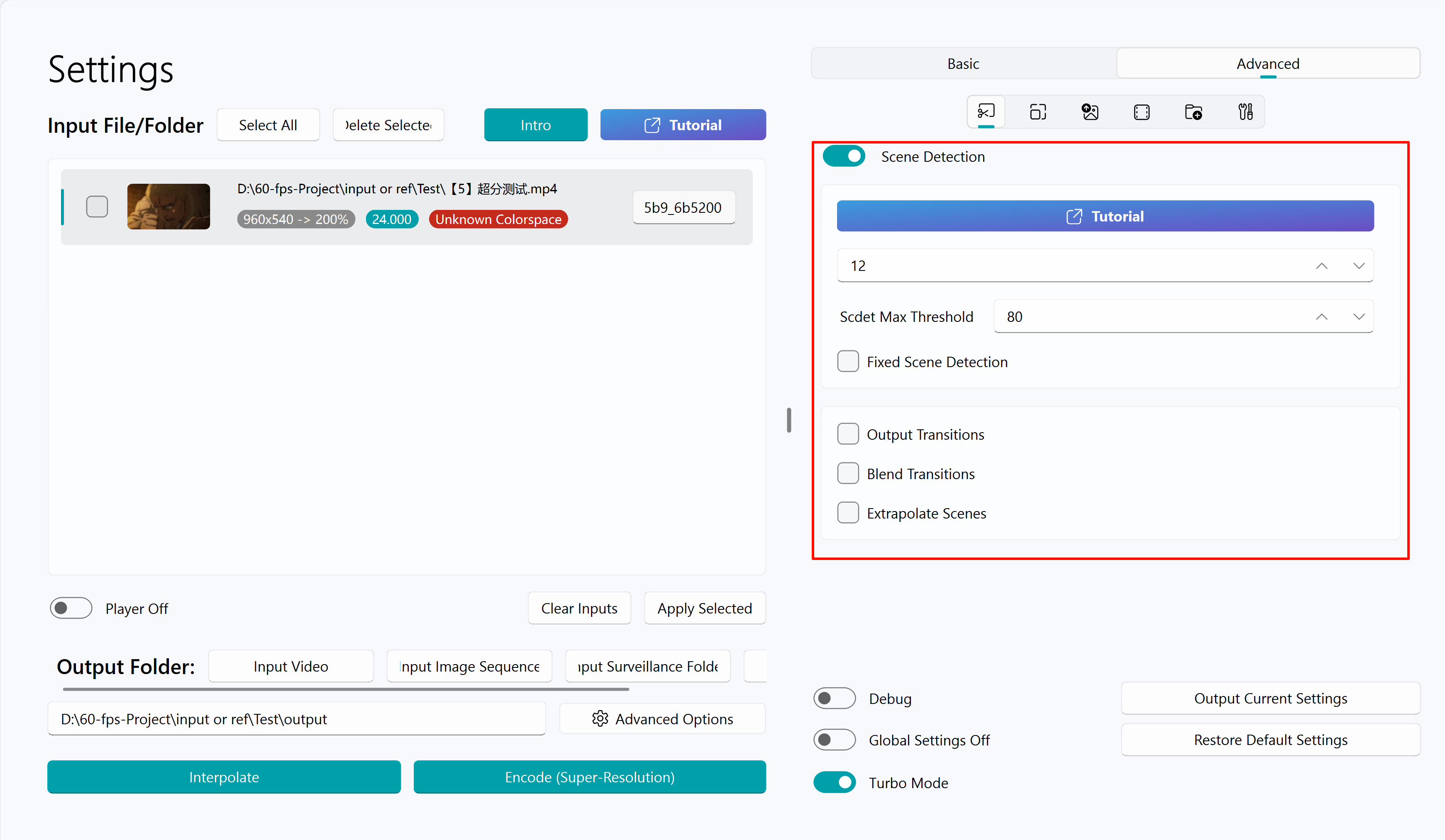
Enable scene detection
Identify scene switches
To avoid the jelly effect when switching scenes during VFI, it is recommended to enable scene detection.
After enabling the scene detection option, the default value for the parameter below is usually 12; if you find that the final exported video is rather choppy, you can consider adjusting it to 15; if you find that there is a significant amount of jelly effect, you can consider adjusting the parameter value to 9, and the range of the parameter value is typically between 9 and 15.
As shown in the picture: jelly produced by missed judgment in transition

Warning
Due to the fact that this scene detection mechanism is designed based on long video input, for some short video input (2-3 seconds), it is recommended to disable this scene detection function or use third-party software to generate transition data for manual transition processing to avoid jitter caused by poor automatic recognition performance.
Scdet Max threshold (default does not need to be adjusted)
When using a fixed scene detection is not enabled (default), the recommended value for this option is 80-90.
When using a fixed scene detection is enabled, the recommended value for this option is 40-60.
Fixed Scene Detection
Use a fixed threshold (maximum recognition threshold) to identify transitions. The software will perform a similarity detection on every two frames of the video.
If the similarity is greater than the threshold, it is considered a transition frame. This mode is prone to false positives or missed detections, and is only recommended to be used when there are many missed detections with the default transition detection method, such as in a mashup with a large number of lenses.
Manual selection of transition support
Shown when Enable scene detection is turned off.
The JSON path option fills in the path of the video transition list file exported from Transition Chooser (TC), see Usage Tutorial.
This method enables the import of transitions manually marked using TC software to replace the automatically recognized transitions, providing full control over where to fill frames and where not to in the input video.
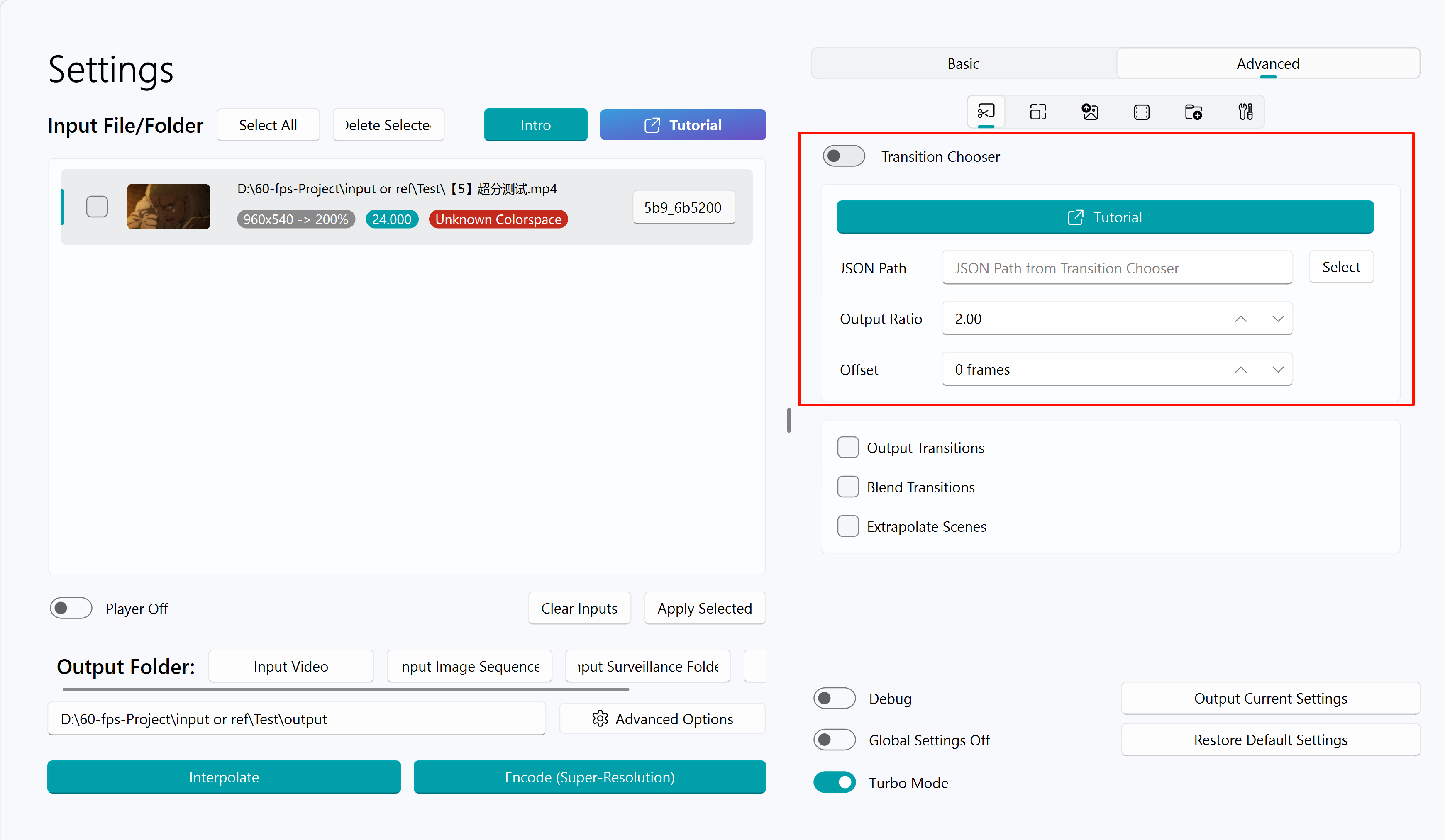
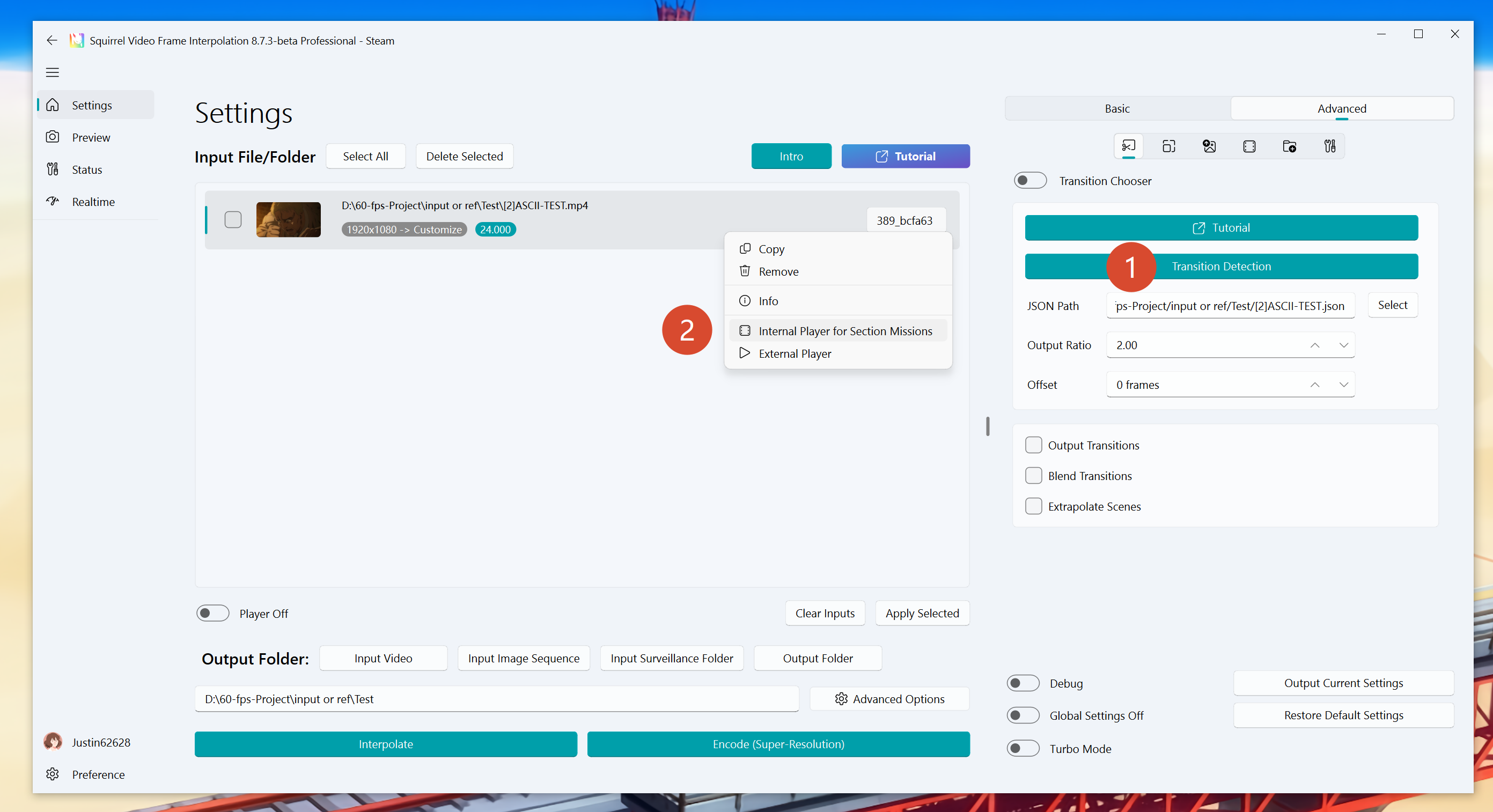
You can also skip an external TC pass: with automatic scene detection off, run SVFI’s offline detector, then fine-tune the marks in the internal player.
- Turn off Enable scene detection, then click Transition Detection to run an offline pass on the current input. The JSON path is filled in when it finishes.
- Right-click the task in the list and choose Internal Player for Section Missions (or turn the player on). Player usage: Player introduction.
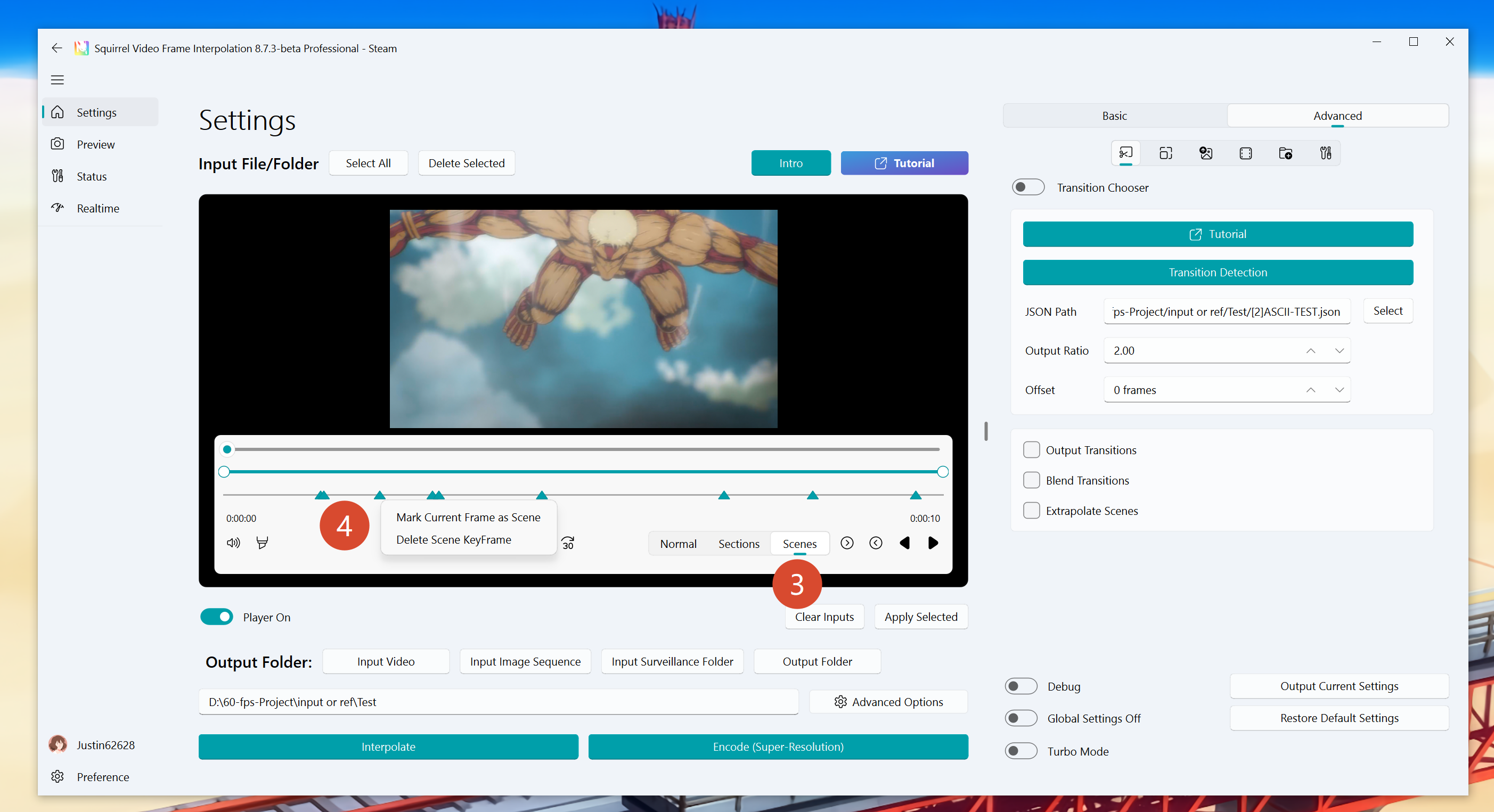
- In the player, switch to Scenes. Marks on the timeline are the detection result. See Player introduction.
- Right-click the timeline to Mark current frame as transition or Delete transition frame.
Other scene detection settings
Output Detected Transitions
Output the scene frames in the video.
The scene frames will be accompanied by relevant decision information and output in the scene folder of the project folder in png format. The project folder will be retained. This option helps you spot false positives and missed transitions so you can tune the thresholds.
Warning
This option is incompatible with Enable NVIDIA fast decoding.
Frame Blend Transitions
When this option is off, the previous frame is copied in proportion as the transition frame to match the output frame rate.
When this option is on, the previous and next frames are blended gradually to reduce stutter from copying transition frames.
Extrapolate Scenes
When this option is off, the previous frame is copied as the transition frame.
When this option is on, the two frames before the transition frame are used with the frame interpolation algorithm to extrapolate, reducing stutter from copying transition frames.
Warning
Only some frame interpolation models support this option; if the selected model does not support it, this option has no effect.
It is not recommended to enable this option when using the RIFE algorithm, otherwise jelly will be introduced.