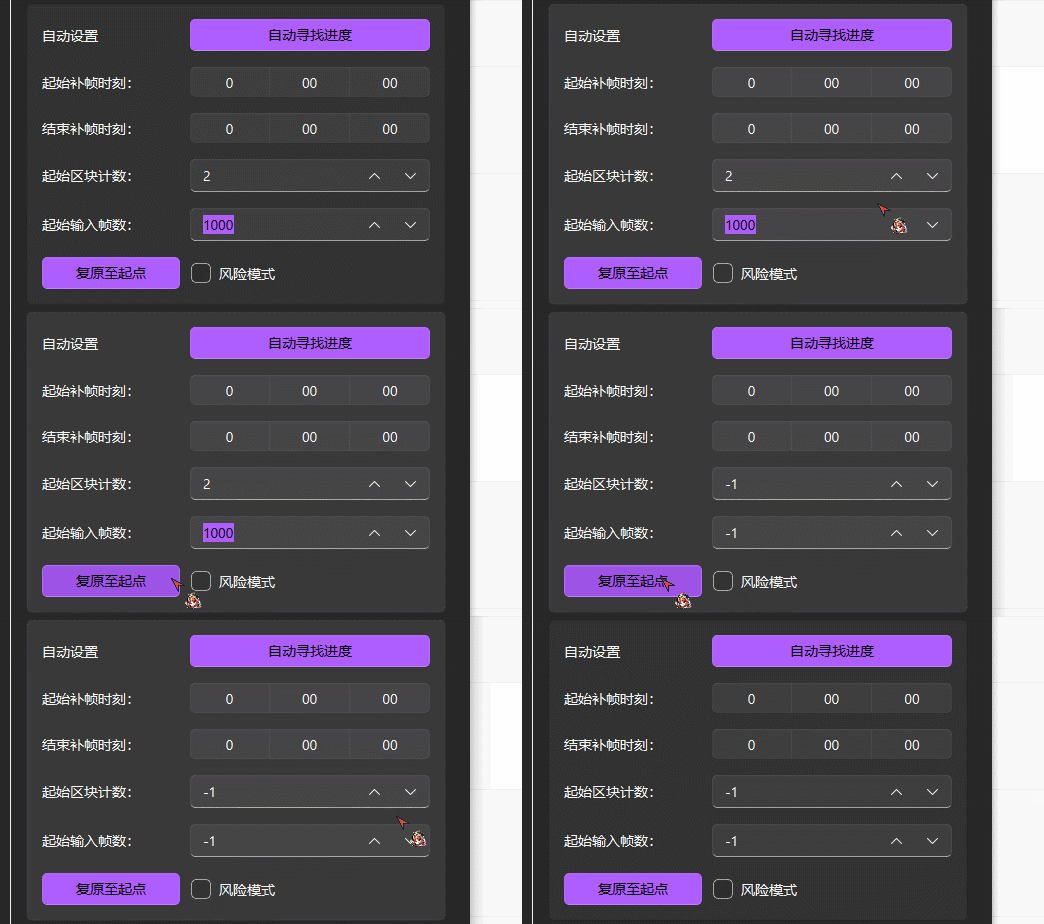
Basic task settings
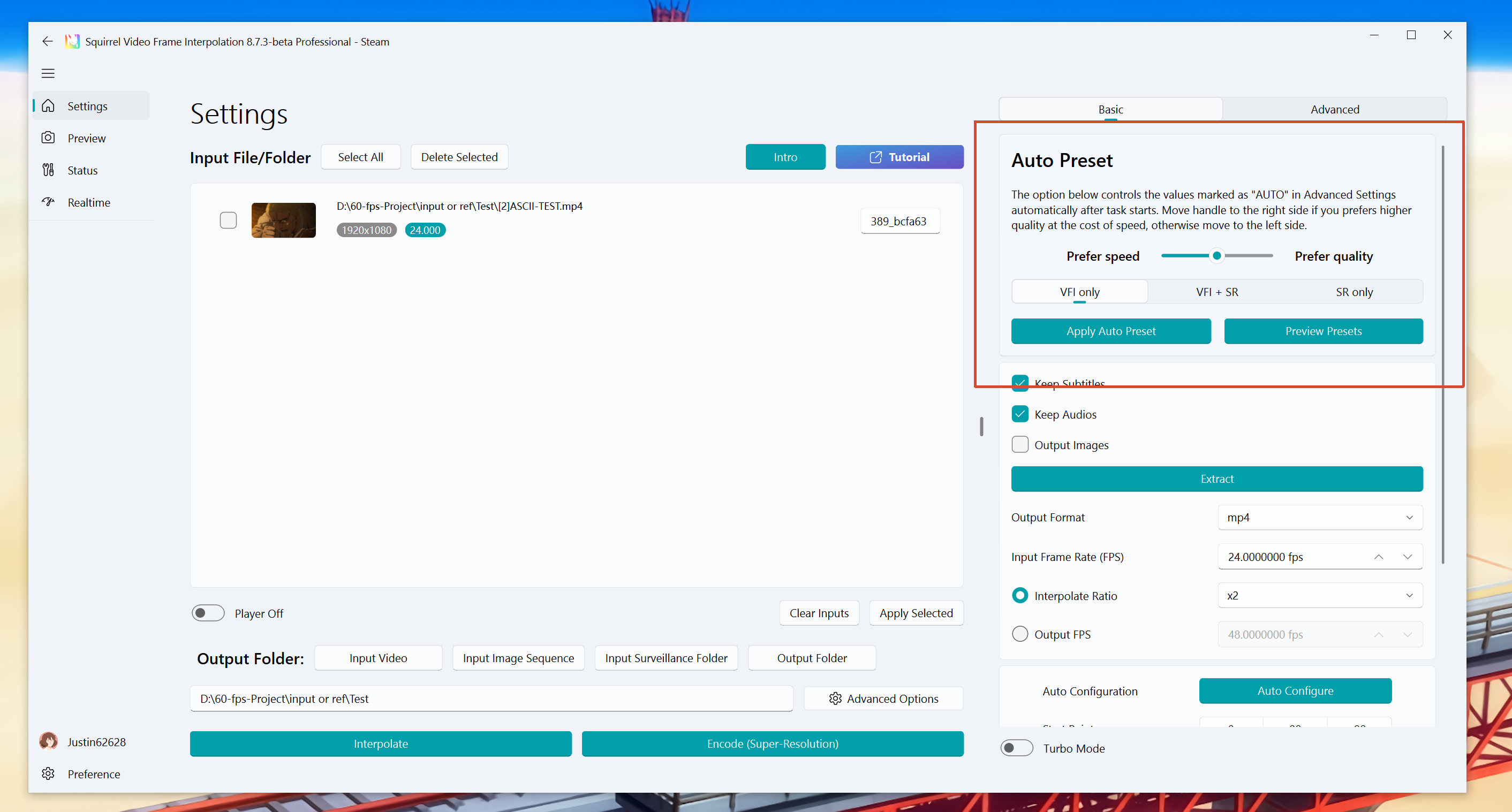
Auto preset
According to your preference for speed or quality, options in Advanced Settings that are set to AUTO are chosen automatically.
Currently this affects: frame interpolation model selection when set to AUTO, and encode (compression) options.
When this option favors speed, related settings are tuned for faster runs with possibly middling output quality; otherwise they favor slower runs with generally more reliable output quality.
With a task selected, click Apply Auto Preset to generate three presets based on the current input video, then click Preview Presets to inspect the recommended options.
Basic I/O control
Controls whether the output includes subtitles and audio, what the output frame rate is, and so on.
When the Interpolate ratio option is active, output FPS = input FPS × Interpolate ratio. During export, the software still uses the frame rate shown for Output FPS. In other words, Interpolate ratio is mainly a shortcut to enter common output frame rates quickly.
Tips
Some frame interpolation models or smoothness modes require a 1× ratio, so you must click Output FPS and set it to the same value as the input frame rate.
Workflow Recovery
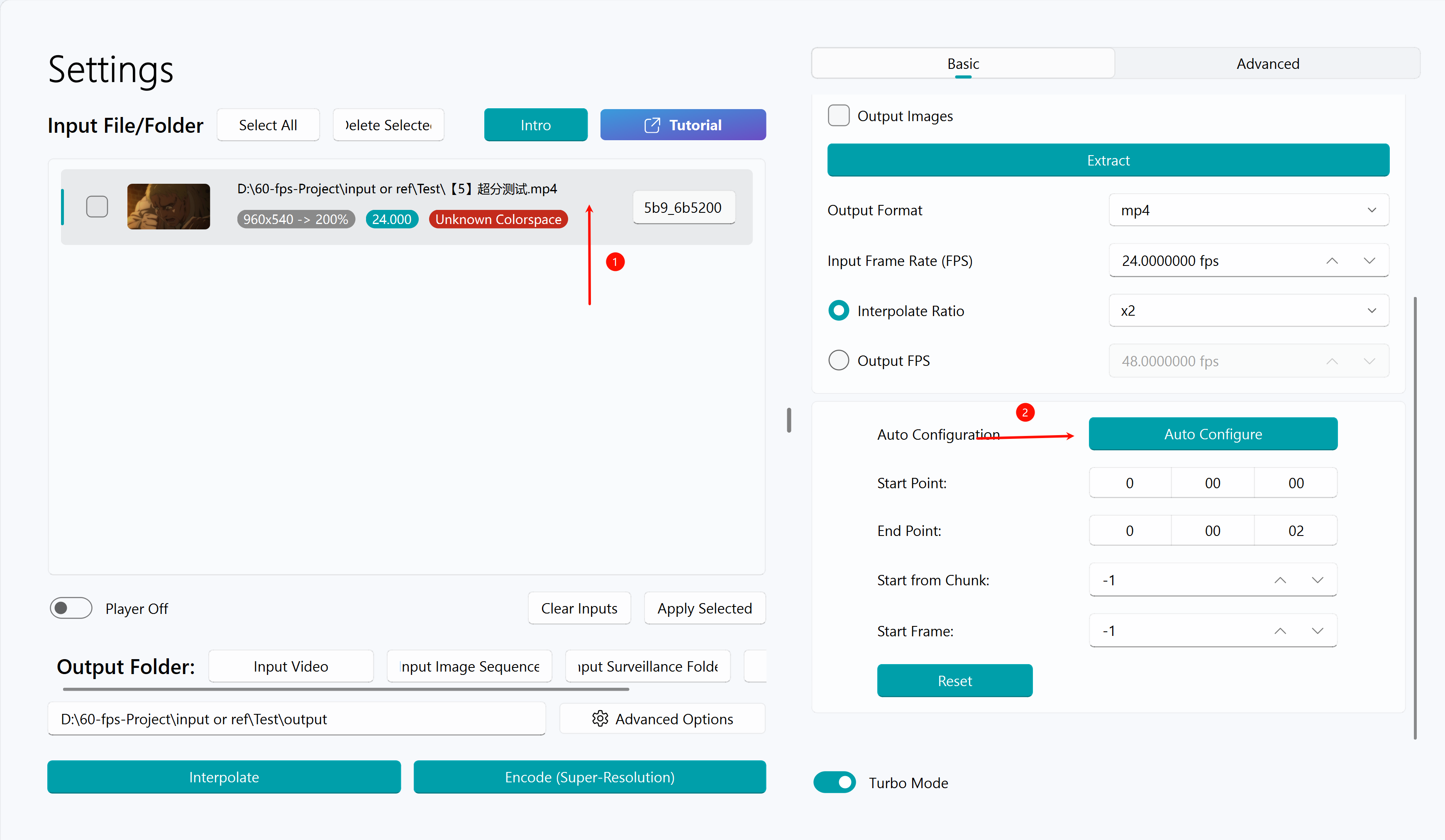
Automatically locate progress
Tips
- If the task stops midway due to a power loss or other unexpected interruption and the program exits, you can click Automatically locate progress to restore the last chunk position.
- You can also drag the project folder into the software; it will look up the progress for that project folder.
- If dragging the project folder does nothing, do not run Steam or this software under a Windows Administrator account with elevated privileges.
Please select the task entry whose progress you want to restore before clicking this button. Then click "Automatically Configure", and the software will automatically restore the current task progress.
Start point and End point
You can select the time period that needs processing. You can also mark it with the in/out buttons in the internal player; only that span is processed.
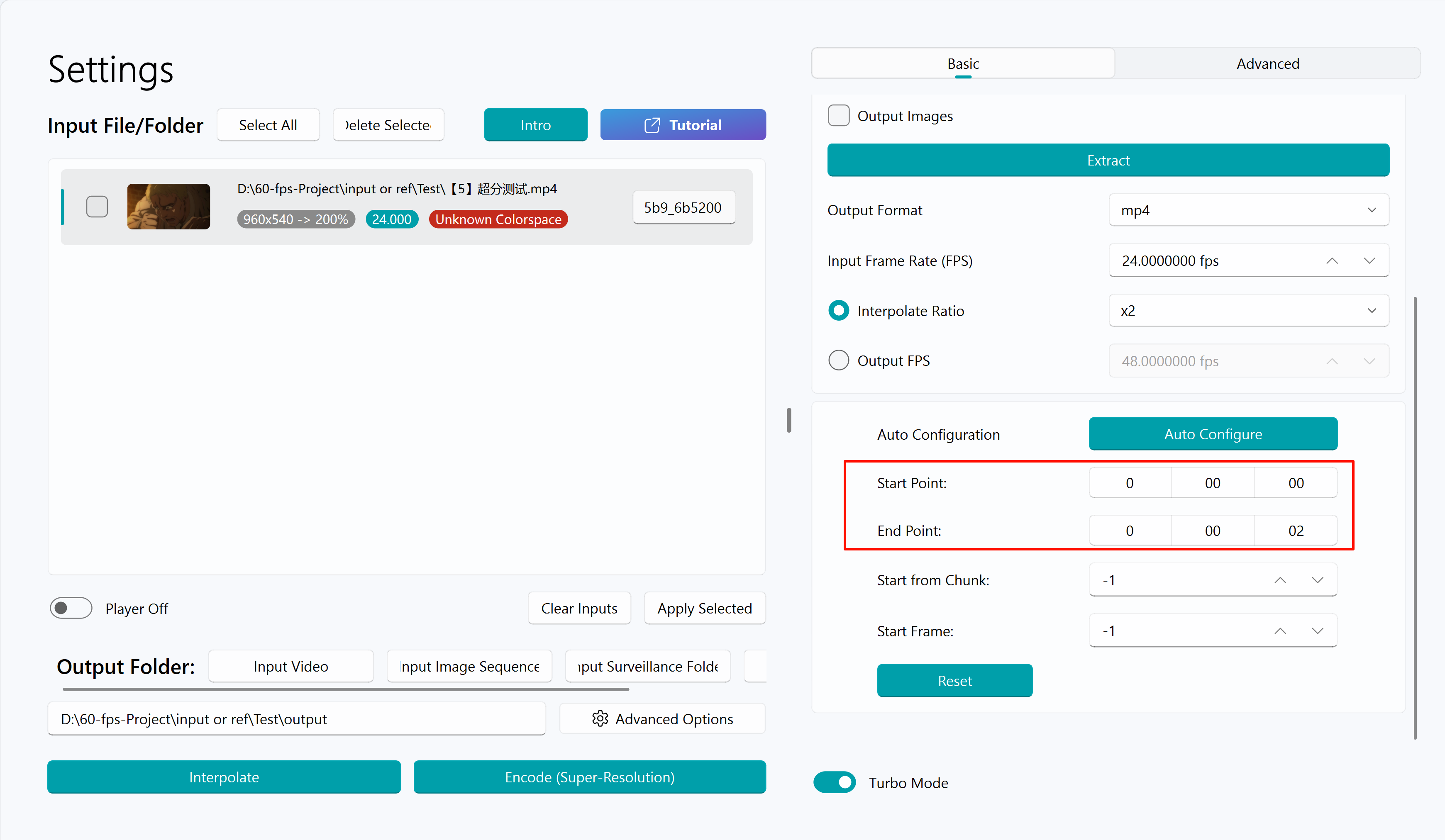
Input format: hours:minutes:seconds
Warning
After specifying the start and end frame, manual termination or power outage may lead to the failure of progress restoration
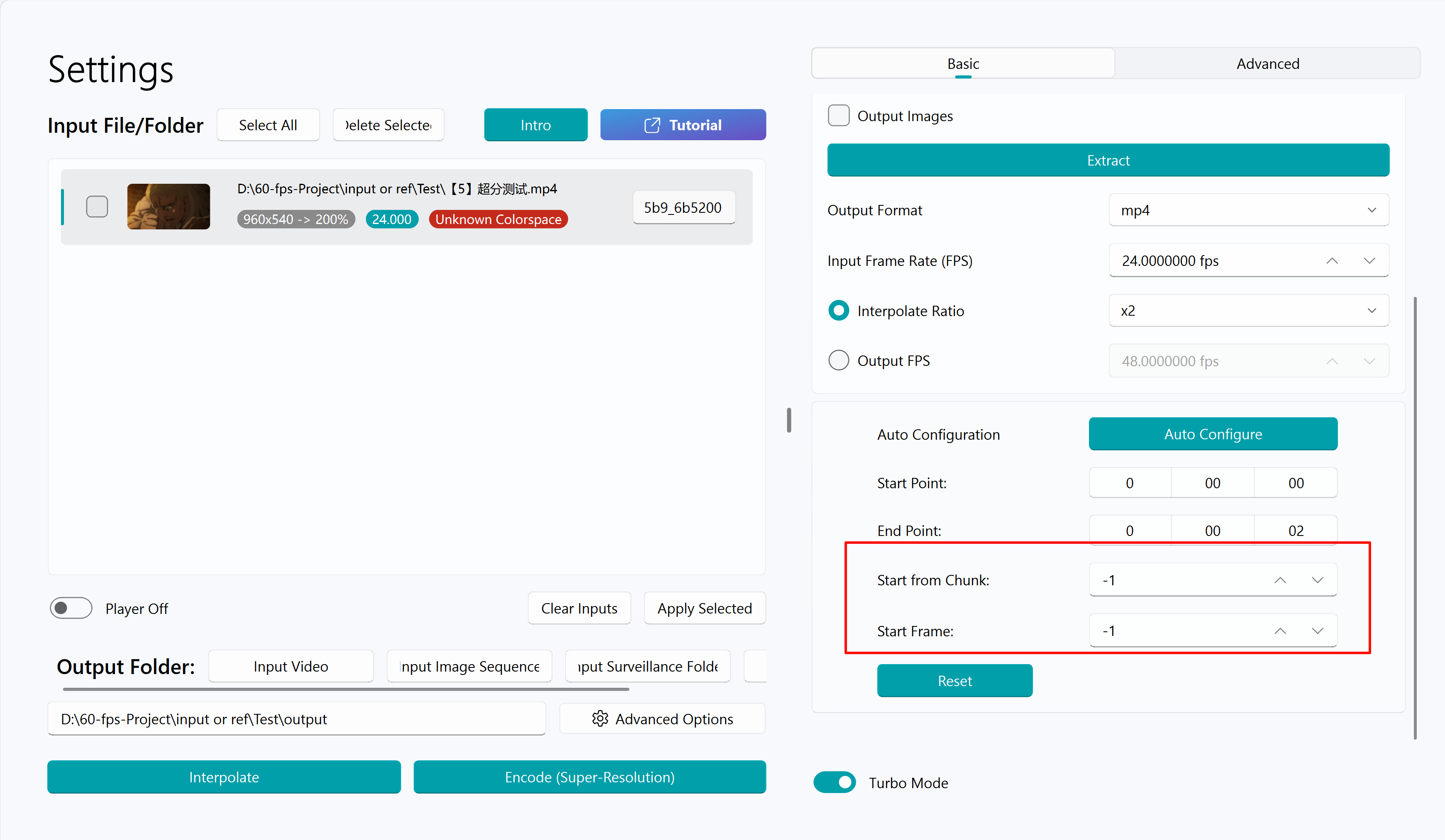
Start from Chunk and Start Frame
Used when automatic progress search fails or when it is necessary to manually specify the starting position of task, which can be used to manually restore the progress of task.
- Start from Chunk = The last chunk number exported in the output folder + 1 (for example, in the figure, chunk-001, the start block count should be 1+1=2).
- Start Frame =
Single output block size in the output quality setting (rendering setting) * (Start from Chunk - 1).
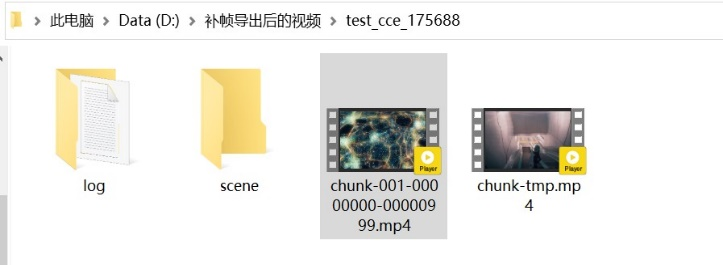
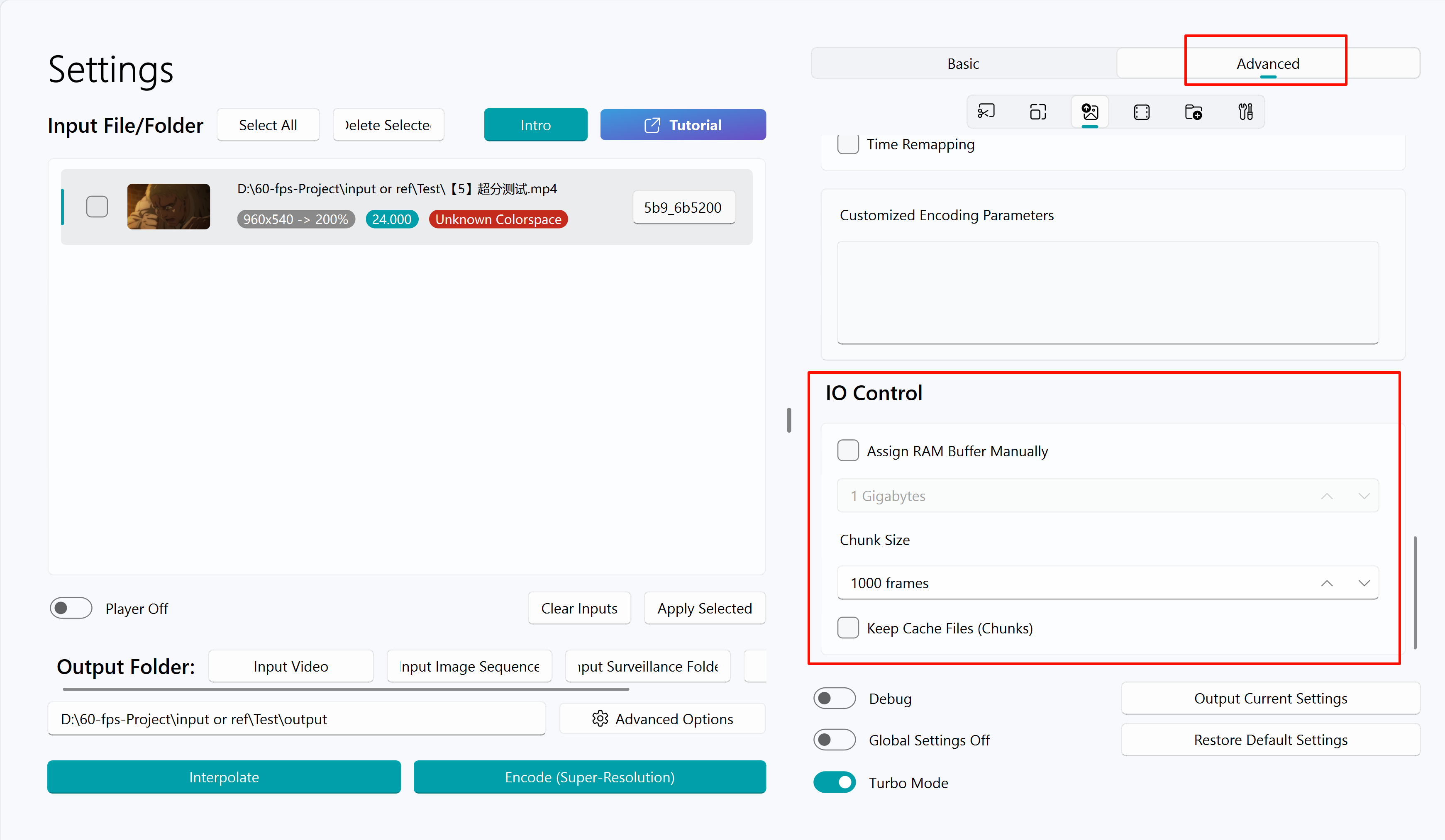
As shown in the above figure, a video chunk has 1000 frames.
Reset
Set the start block and start input frame count to the system default value, and the software will automatically search for the restoration point and restore the task progress.