
Output resolution settings
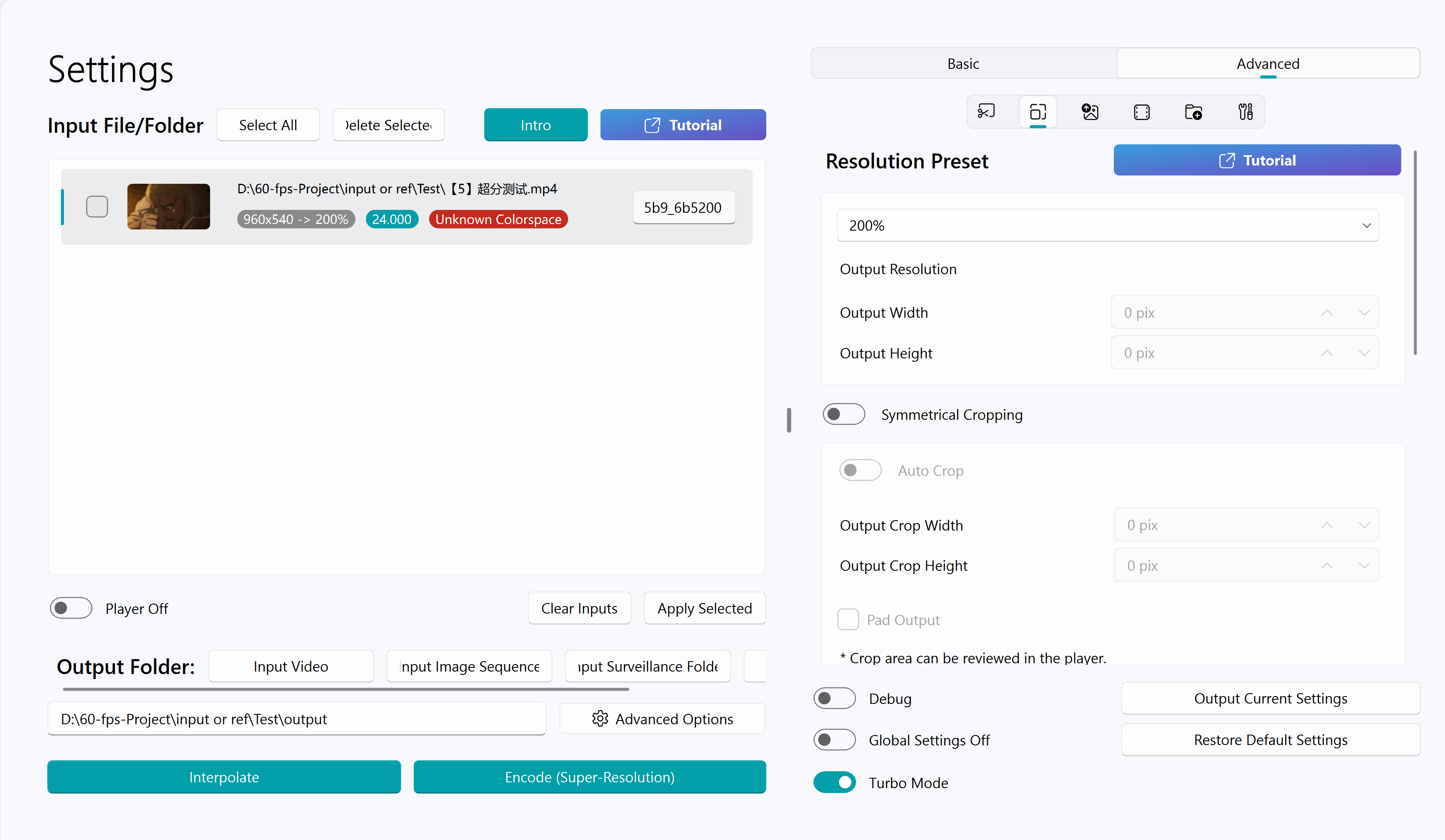
Output Resolution Preset
The dropdown box is used for resolution preset selection.
When the preset is Custom, you can set the final output resolution of the video. SVFI will adjust the resolution of the picture first, and then perform VFI.
Symmetrical Cropping
Can be used to crop the black bars in the video, and the width and height need to be specified manually.
Note: If AI super-resolution is used, the video here refers to the final output videoExample: Video Note resolution 3840x2160, actual picture resolution 3840x1620, then the height here is filled in as
270 = (original height - actual height) ÷ 2.
Example: Input video 1920x1080, actual resolution 1920x800, super-resolution 2x output 3840x1600. Then the black border height is filled in as 280, and the output resolution can be customized to 3840x1600
Tips
If Auto Crop is enabled, or both width and height are entered as -1, SVFI will automatically identify the black bars of the input video and crop them.
Pad Output
After cropping the black bars, perform processing (VFI or super-resolution), and automatically add the black bars back after filling the frames.
Tips
This can reduce the amount of computing per frame to some extent and speed up the processing.
AI Super Resolution - to Make Video Images Clearer
Tips
This feature requires the purchase of the Professional DLC.
Warning
Performing VFI and super-resolution simultaneously will consume more video memory, and insufficient video memory may cause the task to fail.
If the video memory is less than 10G, it is recommended to press Encode button to complete the super-resolution first, and then perform VFI in another task.
Is SR later than VFI
Perform VFI first, and then perform super-resolution (this usually slows down the speed, but reduces the video memory usage and often achieves better results).
Process GPU (Super-Resolution)
Specify which graphics card to use for super-resolution.
Super-Resolution Algorithm
Introduction to Other Super-Resolution Options
Super-Resolution Model multiplier
The super-resolution ratio of the currently selected model
Intermediate Resolution Ratio
That is, the pre-scaling function: first scale the original video by the percentage set by the user, and then perform super-resolution
Example: Original video: 1920x1080, transfer resolution ratio: 50%, model upscale: 4x
At this time, the software running process is:
1920x1080(input) ->960x540(down-scaled by 50%) ->3840x2160(super-resolution)
Tips
- For restoration models, the transfer resolution will be forced to be set to 100%.
Warning
- SVFI will only perform one super-resolution or restoration process on each frame, which means that when the user sets the output resolution to
400%but uses the 2x model for super-resolution, SVFI will only perform super-resolution on the original video once to 200% using the super-resolution model, and then stretch it to 400% using bicubic scaling (Bicubic). - Therefore, using 100% transfer resolution, using a 2x model for 400% super-resolution, and using a 4x model for 200% super-resolution will have different effects.
Tiling mode for CUGAN
Dedicated to certain models, smaller the tile size, the more video memory you save, and the slower the speed
RealCUGAN Low Video Memory Mode
Dedicated to realCUGAN, to be used when the video memory of the graphics card is insufficient
None: Do not use the low video memory mode
Low VRAM mode: When enabled, it may affect picture quality
Tiling Size
- There are presets for the size of the video memory, and you can also choose to customize the adjustment
Suggested operation when encountering video memory shortage
- For graphics cards with less than 6G of video memory, if the video memory is insufficient, directly enable tiling, and keep other options default.
- For more than 6G, try not to enable tiling, and enable the tiling mode. If it is still out of video memory when the maximum (1/4) is turned on, turn off this setting and directly enable tiling, and try the options from large (512) to small in turn.
- For 4G or less video memory, please enable the low video memory mode and directly enable tiling.
Warning
When using realCUGAN, tiling is not recommended if you want to preserve the model's depth perception behavior.
Intensity for CUGAN
Only used for the RealCUGAN super-resolution model series
For non-TensorRT models: the smaller the value, the clearer and sharper the image, and the larger the value, the more conservative and stable (recommended value range 0.5-1.2)
For TensorRT models, the opposite is true: the smaller the value, the more blurred the image, and the upper limit is 1.
Super-Resolution Threads
When there are multiple graphics cards or the graphics card occupancy is not fully utilized, you can try to increase this value, increasing by 1 at a time.
Super-Resolution Sequence Length
Only valid when algorithms such as the BasicVSR series, InPaint, and DeMosaic that require multi-frame input are selected
- The larger the super-resolution sequence length, the more frames are fed to the model in one pass, and the texture is more stable, but at the same time, the video memory usage will increase.
- It is recommended to keep this value above 10. If the video memory is insufficient, it is recommended to reduce the picture resolution and ensure that the value is above 5.
- For the watermark removal (InPaint) and demosaicing (DeMosaic) models, this value is generally recommended to be 30 or higher for better results.
Super-Resolution Using Half-Precision
- It is recommended to enable, which can greatly reduce the video memory usage and have little impact on the picture quality.
Caution
When using NVIDIA 10xx series Pascal architecture graphics cards, enabling this option will slow down the super-resolution speed and may cause the output to be black.
It is recommended to turn off this option.
TTA
Only supported by ncnnCUGAN, in exchange for a small improvement in image quality at the cost of a large amount of time consumption